
Fake UPI Payment Screenshot: How Turf Owners Check
A fake UPI payment screenshot can cost you a slot. Learn what a UTR is, how to check a UPI payment in your bank app, and a simple advance policy for your turf.
A fake UPI payment screenshot looks exactly like a real one, so you can never confirm a turf booking from the screenshot alone. The only proof is money in your own account: open your bank or UPI app, find the credit, and match the amount and the 12-digit UTR before you confirm the slot. This guide shows you how to check a UPI payment in under a minute, the red flags to watch for, and a simple payment policy that protects your evening slots.
Why a fake UPI payment screenshot is a real risk for turfs
Turfs take small advances, often late at night, from players they have never met. A booking for Saturday 8 pm comes in on WhatsApp, the player sends a payment screenshot, and you block the slot. If the screenshot was fake, you find out only when the team arrives, or worse, when the slot sits empty because you turned away a genuine group.
This is not a rare trick. In Delhi, police arrested a man who allegedly cheated more than 200 shopkeepers using a fake payment app that showed a "successful" receipt while no money moved (The Tribune). PhonePe's merchant guide warns that screenshots "can be edited or generated using fake applications" and tells businesses to verify the credit in their own bank account or UPI app (PhonePe Business).
The lesson for a turf owner is simple. A screenshot is a claim. Your bank account is the proof.
Why screenshots can't be trusted
- A screenshot is just an image. It can be edited, or it can come from an app built to look like a payment app.
- It can be a real screenshot of a payment that failed, was reversed, or went to someone else's UPI ID.
- It can be a real screenshot of a payment made to you weeks ago, sent again for a new booking.
In every case the image looks fine. Only your own account tells you the truth.
What a UTR number is (and why it matters)
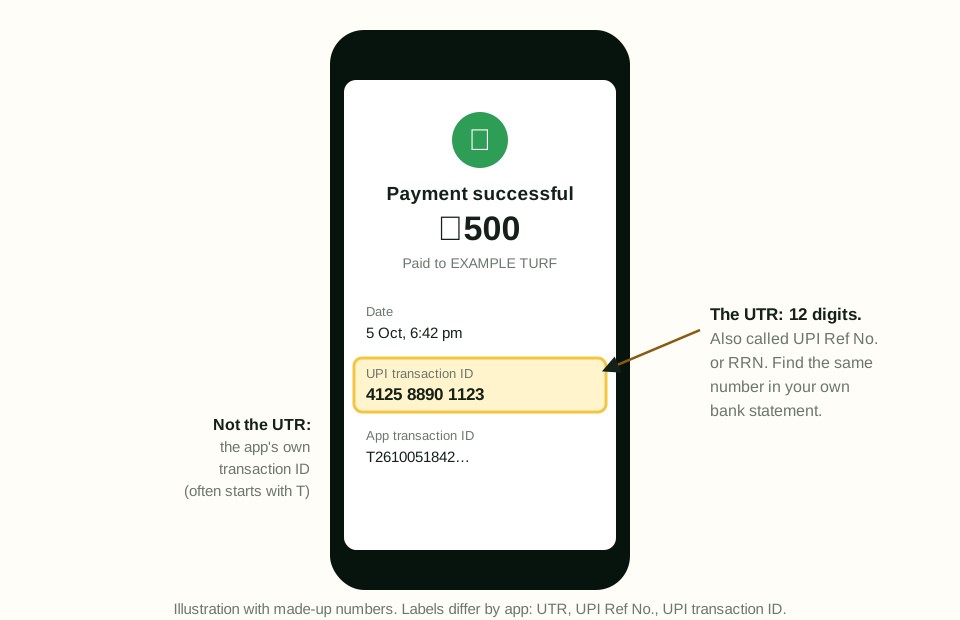
Every UPI payment gets a reference number. You will see it called UTR (Unique Transaction Reference), UPI reference number, UPI transaction ID or RRN, depending on the app. For UPI it is a 12-digit number, while NEFT and RTGS use longer references (PhonePe Business). Paytm's help page describes it the same way: a unique 12-digit number generated for every UPI transaction, shown in the transaction details (Paytm).
Two things make the UTR useful for you:
- The same number appears on both sides. The player sees it in their app, and you see it in yours when the money lands. If they match, it is the same payment.
- One UTR, one payment. A UTR can only belong to one transaction. If a player sends a UTR you have already matched to another booking, the money has already been counted once.
Note that some apps also show their own internal transaction ID, which can be longer and may contain letters. For checking, use the 12-digit UPI reference number or UTR.
How to check a UPI payment: step by step
Do this every time, before you confirm the slot. With practice it takes less than a minute.
- Ask for the 12-digit UTR. Ask the player to send the UTR as text, not only a screenshot. Text is easier to search and harder to blur.
- Open your own app. Use the UPI app or bank app linked to the UPI ID you gave the player. Do not use any link or app the player sends you.
- Go to transaction history. Find the incoming payments for today.
- Find the credit. Look for the exact amount at about the time the player says they paid.
- Match the UTR. Tap the payment and compare the 12-digit UPI reference number with the one the player sent. All 12 digits should match.
- Check the status. It should show as successful or credited, not pending or failed.
- Check it hasn't been used before. Search your booking register or chat for that UTR. If it is already against another booking, stop.
- Then confirm. Only now mark the booking as paid and send the confirmation.
If the credit is not there yet, don't argue. Tell the player politely that the slot is held for a few minutes and will be confirmed as soon as the money shows in your account. If nothing arrives by then, release the slot.
If you use a sound box or SMS alerts
A payment sound box or bank SMS is helpful for walk-ins at the counter, but for online bookings you still need to match the UTR. Many payments of the same amount can arrive in an evening, and the alert alone won't tell you which player paid.
Red flags to watch for
None of these proves fraud on its own, but each one is a reason to slow down and check your account carefully.
- Pressure to confirm fast. "Bro, just confirm, my friends are waiting." Urgency is the oldest trick. PhonePe lists it as a warning sign (PhonePe Business).
- Only a screenshot, no UTR. Or a UTR that is cropped, blurred or has fewer than 12 digits.
- Payee name or UPI ID doesn't match yours. Zoom in. A screenshot of a payment to a different UPI ID is useless to you.
- Odd time stamp. The time on the screenshot is well before the chat started, or in the future.
- Amount slightly off. ₹1,000 sent when the advance is ₹1,500, with a promise to "pay the rest at the ground".
- "Sent twice by mistake, please refund." Check your account before you refund anything. Refund only money that has actually reached you, and only to the same UPI ID it came from.
- A UTR you have seen before. The strongest red flag of all.
A simple payment policy for your turf
A clear policy, written down and shared with every player, saves you from awkward calls. Here is one you can adapt.
| Rule | What it says | Why |
|---|---|---|
| Advance | A fixed advance per booking, paid by UPI to the turf's own UPI ID | Commits the player to the slot |
| Hold time | The slot is held for a few minutes after the request; unpaid holds are released | Stops slots being blocked by people who never pay |
| Proof | Player shares the 12-digit UTR (and a screenshot if they like) | The UTR is what you search for |
| Confirmation | The booking is confirmed only after the credit and UTR are matched in the turf's account | A screenshot is never enough |
| Balance | Rest of the amount paid at the ground before play | Keeps advance small and simple |
| Cancellation | Clear rule on refunds or moving the slot, shared before payment | Avoids arguments later |
How big should the advance be? That depends on your prices and how often teams cancel. Example: if your evening slot is ₹1,200 an hour and you ask for a 25% advance, the advance is ₹1,200 × 0.25 = ₹300. Redo this with your own rate and the share that feels right for your area. If you are still setting your rates, see our guide on how to price your turf per hour.
A few habits that help:
- Put your policy in your WhatsApp Business greeting message and on your booking page.
- Use one UPI ID for bookings, so all advances land in one place.
- Keep a simple register (or software) where every UTR is written against its booking.
- Train staff to never confirm from a screenshot, even for regulars.
If you take most bookings on WhatsApp, our guide to taking turf bookings on WhatsApp shows how to set up the chat flow around this policy.
What to do if you've been cheated
If a fake payment gets through, act quickly:
- Save the screenshot, the chat, the player's number and any CCTV footage.
- Inform your bank.
- Call the national cybercrime helpline 1930 and file a complaint on the National Cyber Crime Reporting Portal, as PhonePe advises merchants to do (PhonePe Business).
- File a police complaint if the amount or pattern justifies it.
Then tighten the gap that let it through. Usually that means the slot was confirmed before the UTR was matched.
How Turf Access helps
Turf Access is built around this exact check. Players book through your booking link or the shared WhatsApp number and pay the advance straight to your own UPI ID, by QR or UPI app. The slot is held for a few minutes. The player then taps Payment done, and can add the 12-digit UTR or a screenshot. The booking ref is in the UPI payment note, so you find the payment in your UPI app by its ref.
You get an alert for every payment to check. You match it against your bank and confirm it in your desk. If a UTR has already been used on another booking, Turf Access flags it. There is no commission, and Turf Access never holds player money; it all goes straight to you. See how it works in our turf booking software.
Frequently asked questions
How do I know if a UPI payment screenshot is fake?
You can't tell reliably by looking at the screenshot. Open your own bank app or UPI app and look for the credit with the same amount and the same 12-digit UTR. If the money is not in your account, the payment has not reached you, whatever the screenshot shows.
What is a UTR number in UPI?
UTR stands for Unique Transaction Reference. For a UPI payment it is a 12-digit number, also shown as the UPI reference number or RRN, that identifies that one transaction. Both the payer and the receiver can see it in the transaction details of their UPI app.
Where can I find the UTR number of a payment I received?
Open your UPI app or bank app, go to transaction history, and tap the payment. The details page shows the 12-digit UPI reference number or UTR. Your bank statement usually shows it in the narration of the credit too.
Can the same UTR be used for two bookings?
No. A UTR belongs to one transaction, so a genuine payment can only cover the booking it was made for. If a player sends a UTR you have already matched to another booking, treat it as a red flag and ask for a fresh payment.
What should I do if someone cheats me with a fake payment?
Keep the screenshot, the chat and the player's number, and inform your bank. Call the national cybercrime helpline 1930 and file a complaint on the National Cyber Crime Reporting Portal. Reporting quickly gives you the best chance of action.